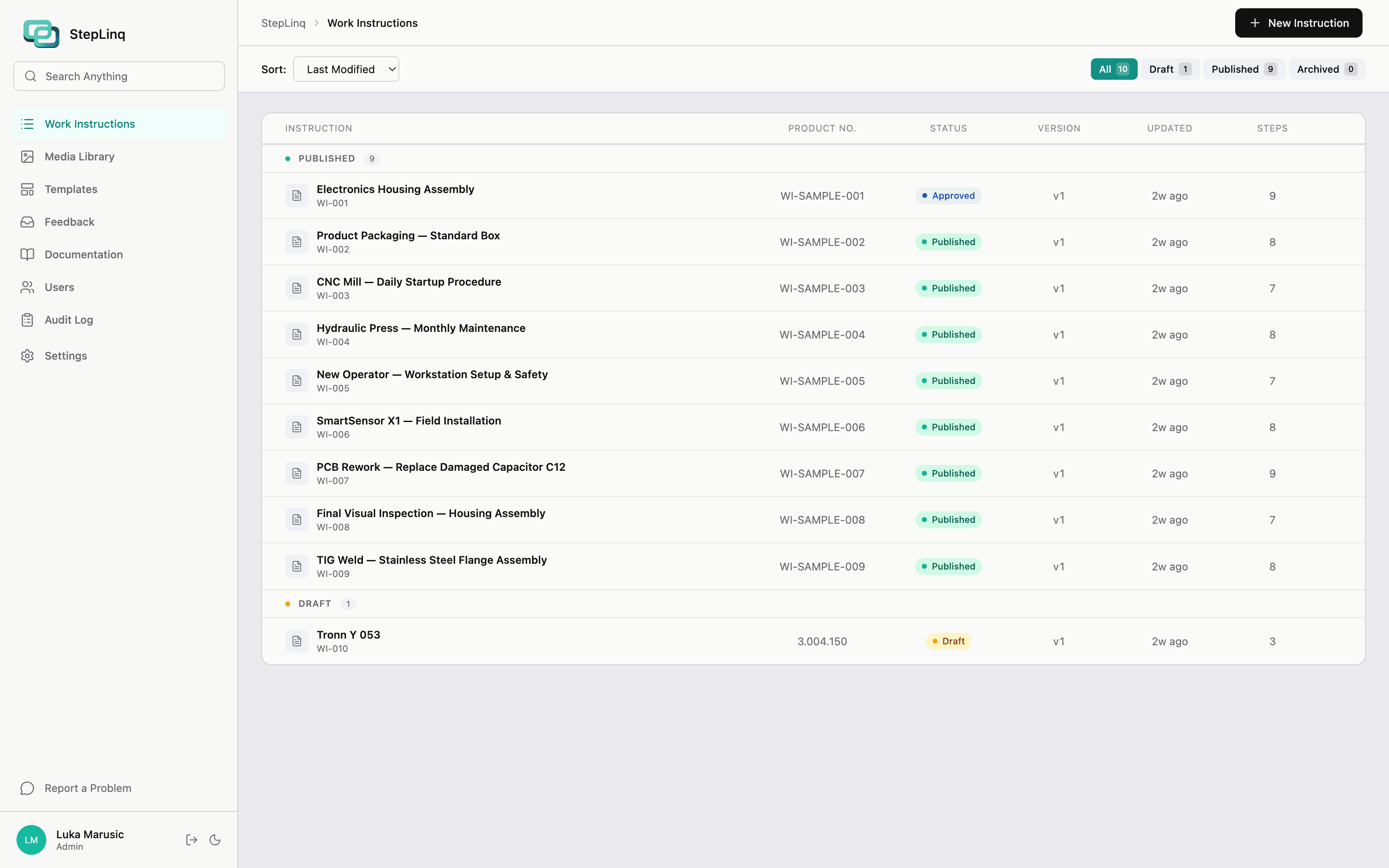
From first photo to floor-ready instruction in one afternoon
Document your assembly process once. Every operator follows the same steps. Every change is tracked. Every audit is covered.
The core workspace for building instructions
Three-panel layout with step list, image canvas, and details panel. Fully resizable with panel sizes persisting between sessions.
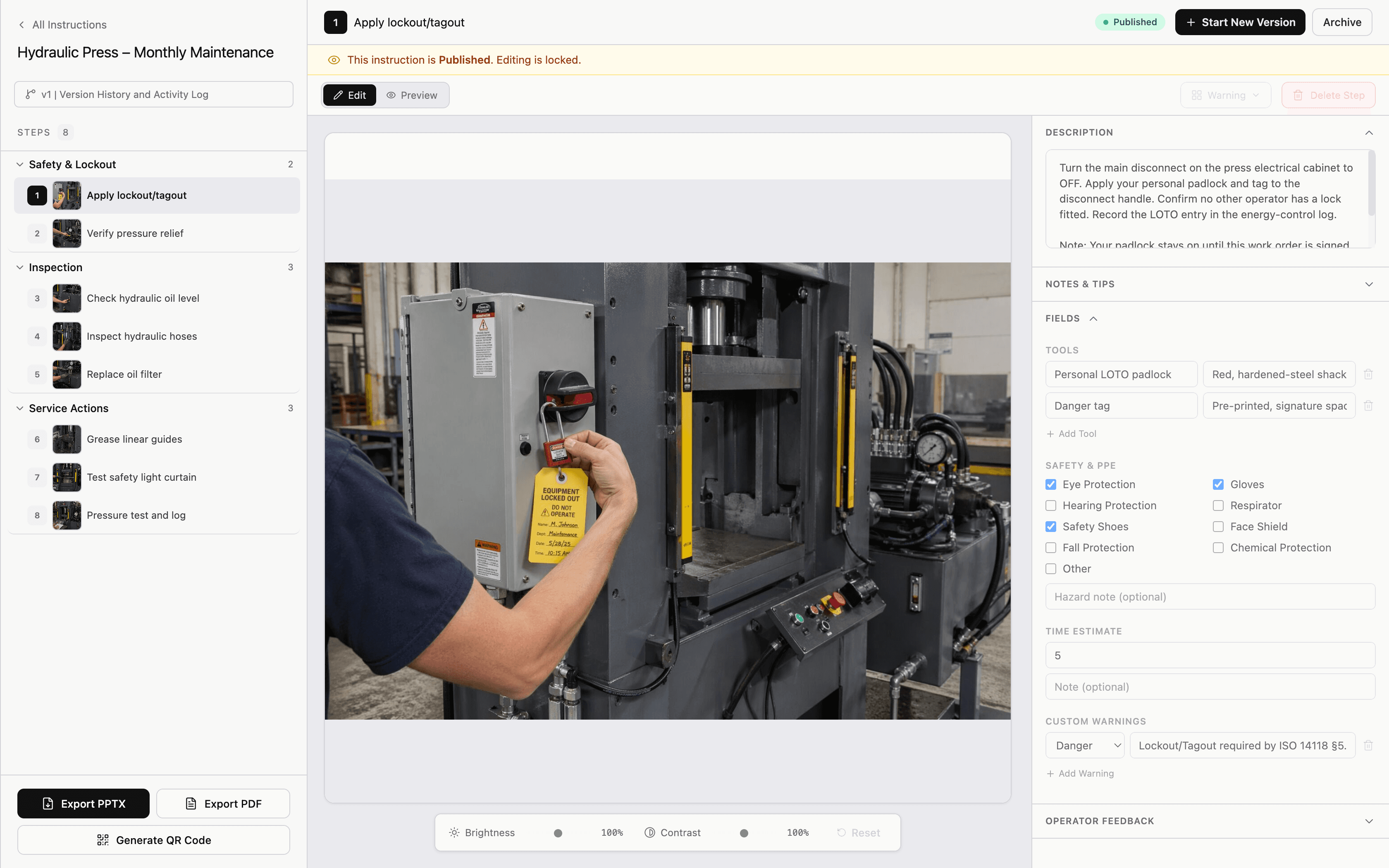
- Three-panel layout: step list (left), canvas (center), details panel (right)
- Resizable panels — drag borders to customize workspace
- Panel sizes persist between sessions
- Full-screen editor mode
- Add, edit, delete, and reorder steps via drag and drop
- Per-step layout template selection
- Step numbering updates automatically
- Rich text description field per step
- Notes and tips field per step (collapsible)
- Keyboard navigation between steps
- Auto-save at configurable intervals
10 professionally designed layout presets
Each step can use a different template. Enable or disable templates in Settings — only enabled ones appear in the layout picker.
Full Image
Photo fills 90% of page. For overview shots.
Image + Description
Photo 60%, description 40%. No fields.
Standard
Photo 55%, description and fields 45%.
Fields Focus
Photo top 40%, large fields section 60%.
Warning
Photo 40%, safety box 60% with hazard styling.
Text Only
No image. Full width for description and fields.
Photo Focus
Image fills page, overlay at bottom.
Two Images
Two photo zones. Before/after, wrong/right.
Checklist
Small image top, checklist-style fields below.
Parts Layout
Image 50%, parts table 50%. Component steps.
8 structured fields purpose-built for manufacturing
Steps start clean. Add only the fields you need per step. Toggle fields on/off globally in Settings. All field data exports to PPTX/PDF with formatted rendering.
- Parts — part number, description, quantity. Autocomplete from library
- Torque — value with Nm/ft-lb unit selection and application notes
- Loctite — type selector (222 Purple / 243 Blue / 262 Red / 271 Green)
- Screws — type, size, material, drive. Autocomplete from library
- Tools — required tool list per step
- Safety/PPE — glasses, gloves, steel-toe, hearing, face shield with hazard notes
- Time Estimate — expected duration in minutes
- Warnings — Info / Caution / Warning / Danger levels with message text
- Fields removable per step with confirmation if data exists
- Add Field dropdown shows only enabled and not-yet-added fields
Flexible photo capture and annotation
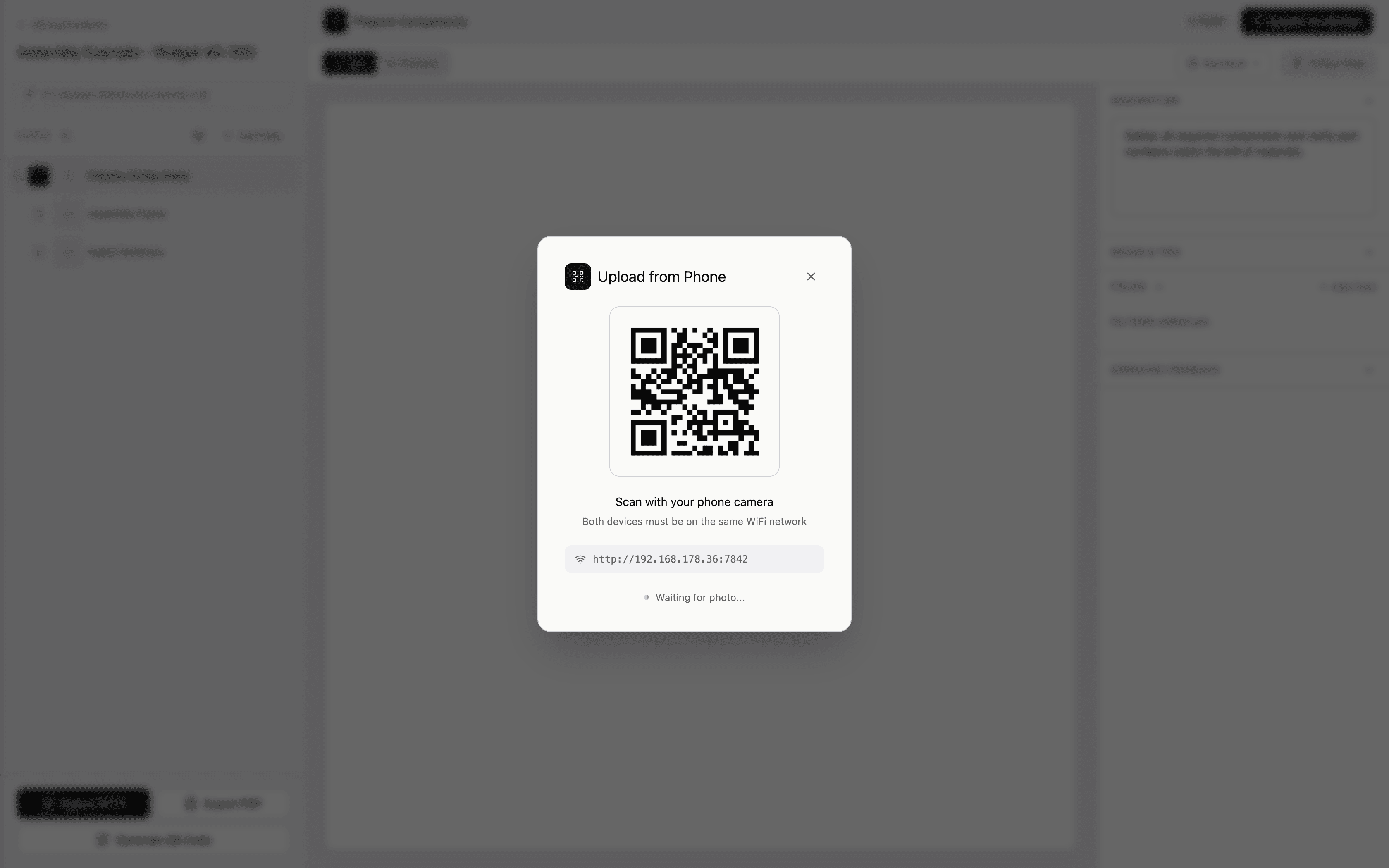
Upload from file, scan via phone QR over local WiFi, or use a global hotkey to capture screenshots from any running application. No internet needed.
- Upload photos via file picker (JPEG, PNG)
- QR code phone upload — over local WiFi, no internet needed
- Global hotkey screenshot capture from any running app
- Multi-monitor support — captures the screen where cursor is located
- Image crop with 16:9, 4:3, 3:2, and Free aspect ratio lock
- Brightness and contrast adjustment per photo
- Image replace — swap photo without losing annotations
- Multi-image per step via the Two Images layout template
- Annotation canvas — arrows, circles, rectangles, text labels, freehand
- Annotations baked into images on export
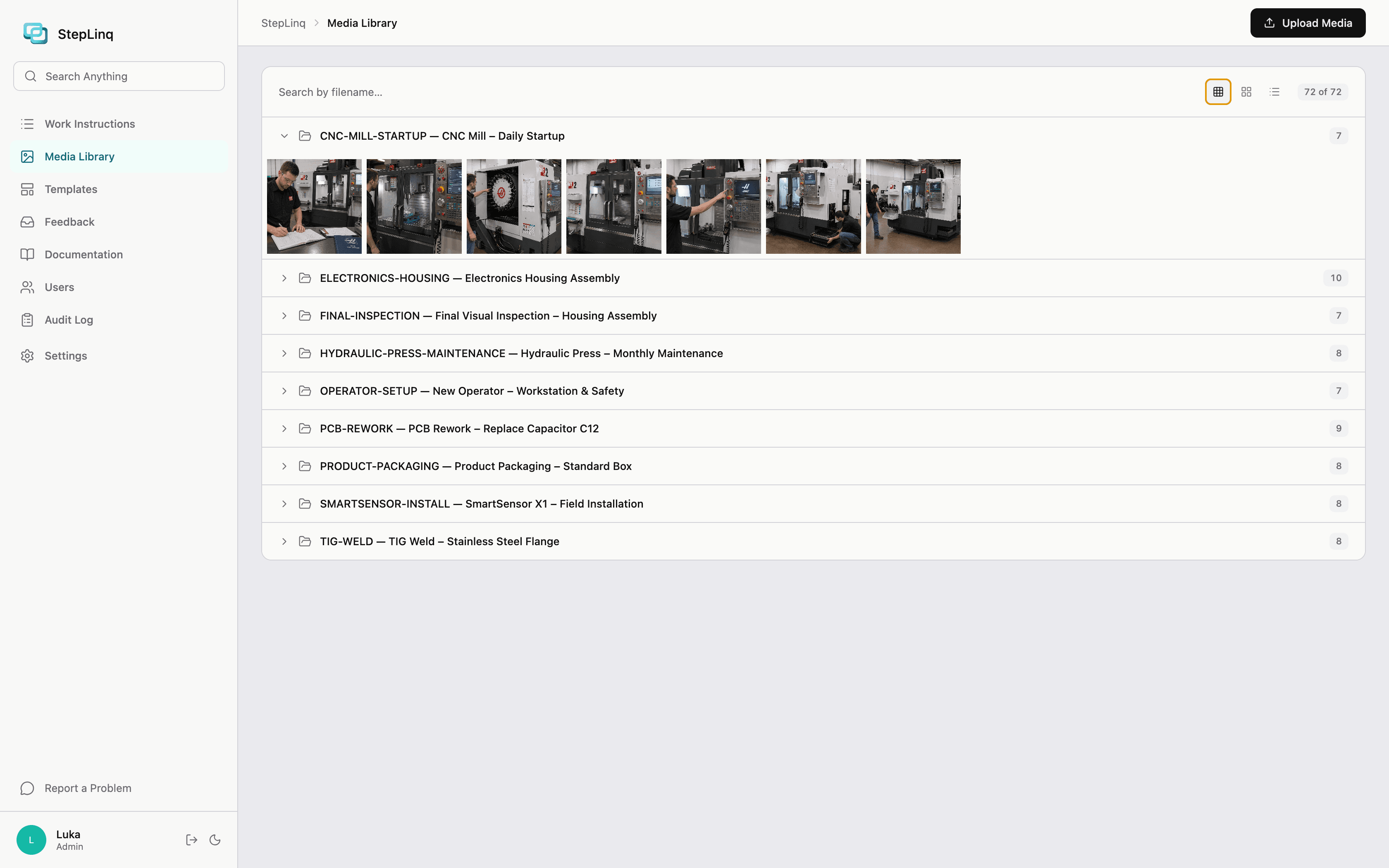
- Media Library page — view all media across instructions
- Folder auto-renames when instruction title changes
Professional PPTX and PDF output in one click
Per-step layout templates applied to every slide. Company branding, approval stamps, and DRAFT watermarks included automatically. BOM as CSV.
- PPTX export — professional PowerPoint, one step per slide
- PDF export — fixed-layout for printing and archiving
- Configurable page size: A4, US Letter, Widescreen 16:9
- Cover slide with company logo, name, title, version, date
- Approval stamp on every slide of approved instructions
- DRAFT watermark on unapproved versions
- Section divider slides between step groups
- Bilingual export labels (English / German)
- BOM export as CSV — aggregates parts across all steps with totals
- Export loading overlay with per-step progress indicator
- Configurable default export path
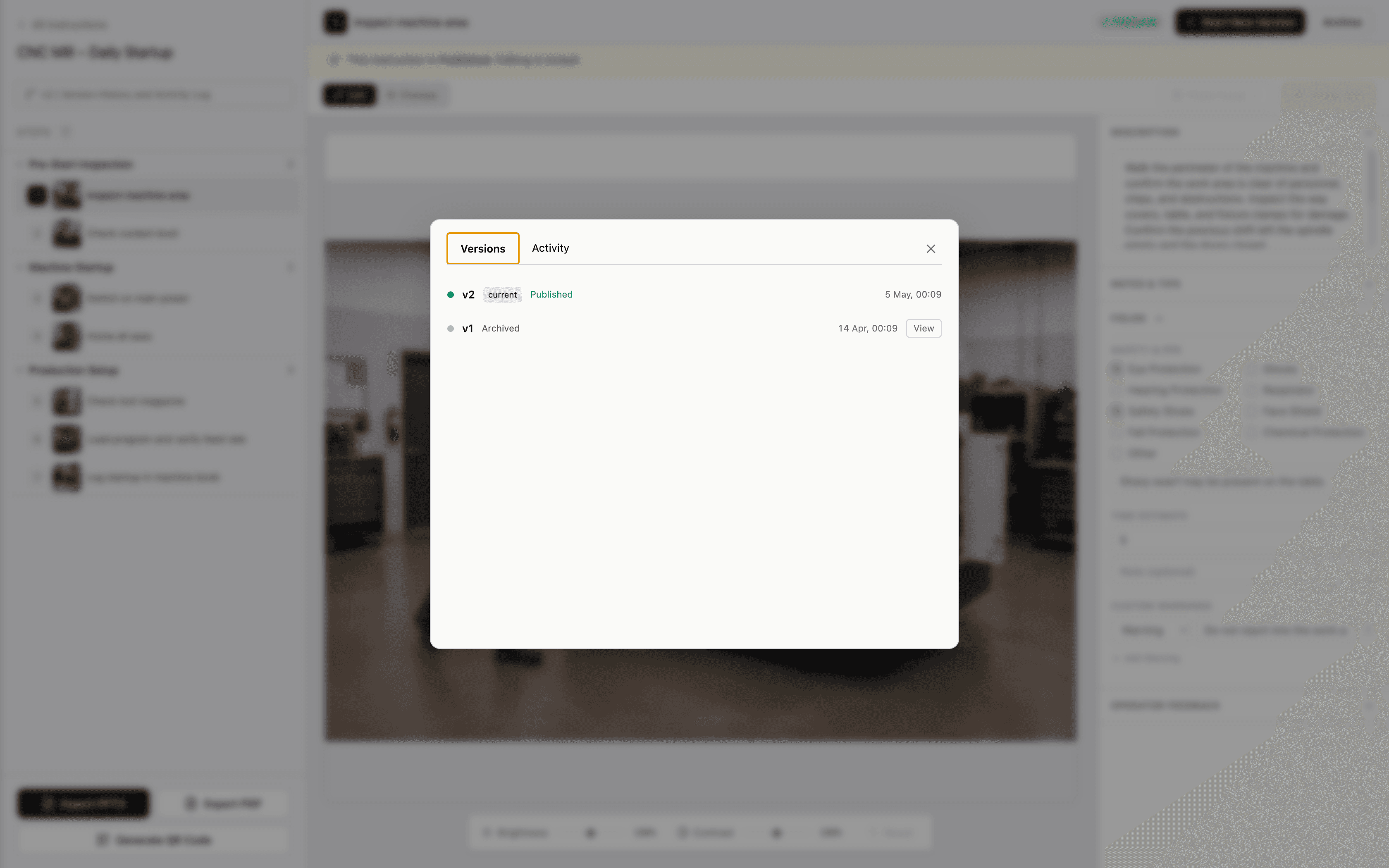
Full version history — ISO 9001 Clause 7.5
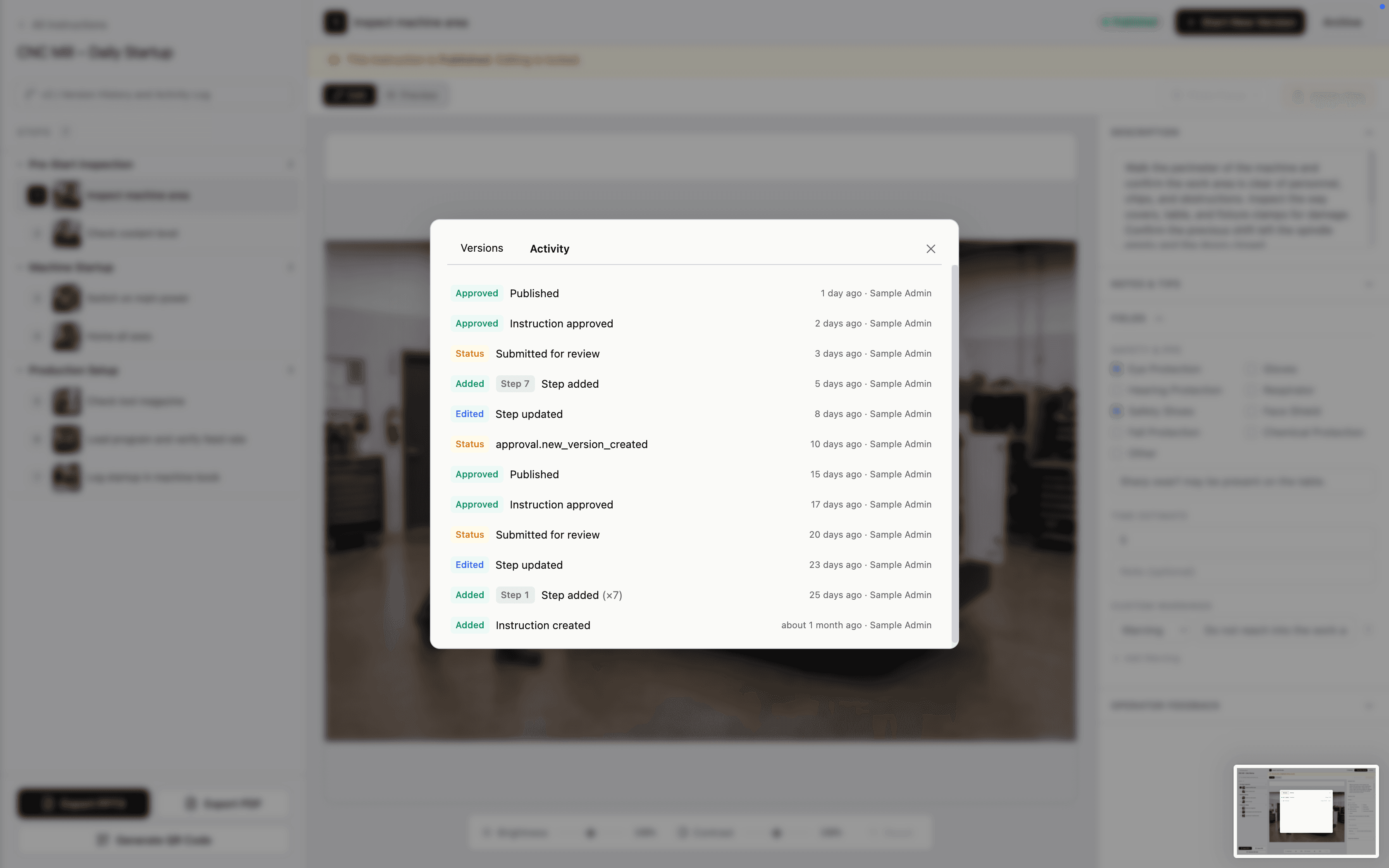
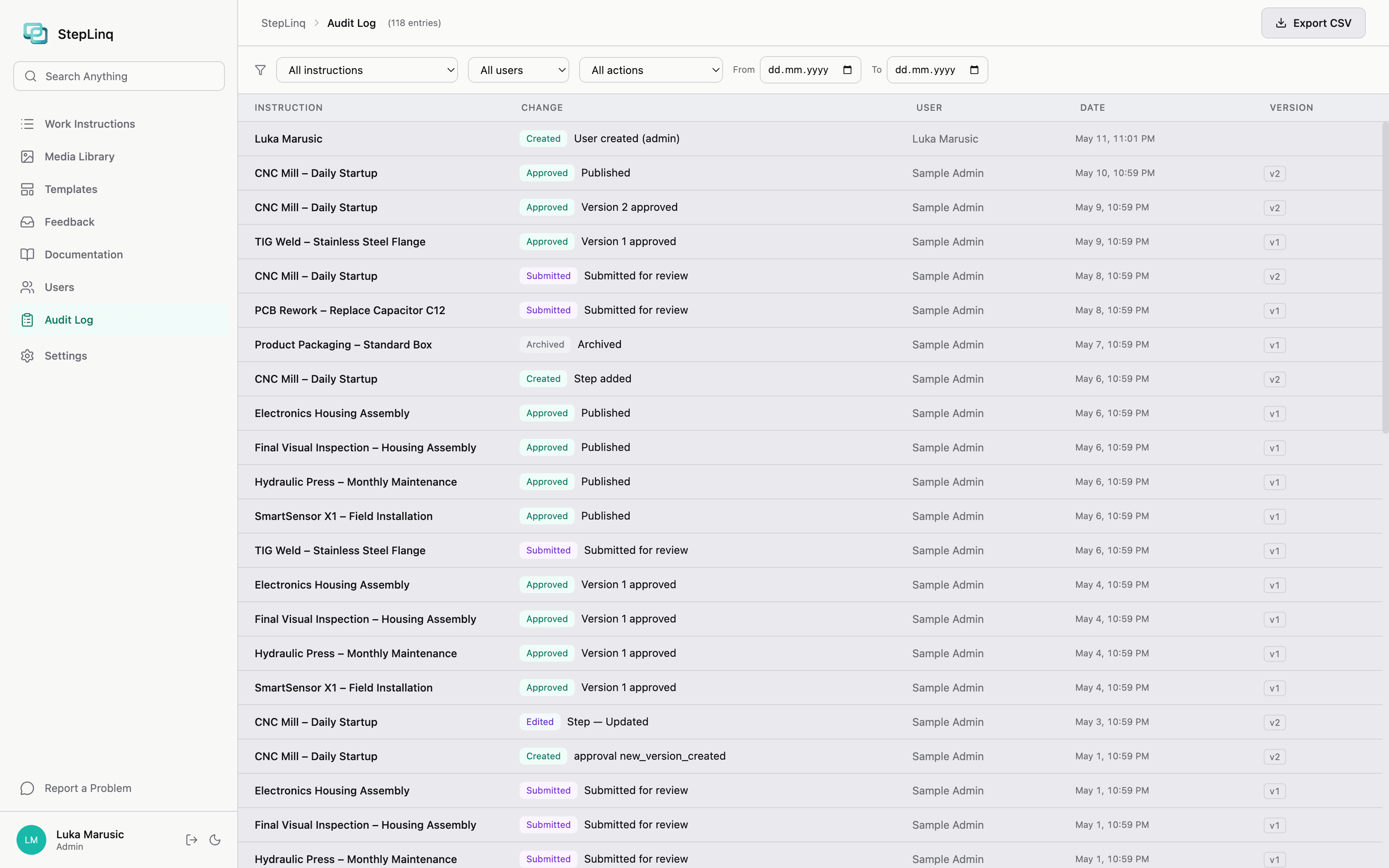
Approved versions are frozen. Editing an approved instruction creates a new draft automatically. Every state change is logged with actor, timestamp, and comment.
- Every instruction starts as Version 1, status Draft
- Approved versions are frozen — no edits on approved content
- Editing an approved instruction creates a new Draft version automatically
- Version history panel with all versions, timestamps, and statuses
- Click any previous version to view it read-only
- Approval stamps include version number on all exports
- Audit trail logs every version creation, status change, and approval
Multi-step QA review with comment tracking
Draft → Submitted → Under Review → Approved or Changes Requested. Step-level QA comments with category selection. Comments must be resolved before resubmission.
- Status flow: Draft → Submitted → Under Review → Approved / Changes Requested
- Engineer submits instruction for review
- QA Manager starts review, adds step-level comments
- Comment categories: Photo Issue, Wrong Information, Missing Detail, Safety Concern, Other
- Comments must be resolved before resubmission is allowed
- QA approves or requests changes with optional notes
- Solo License: self-approve shortcut for single-user workflows
- Every state transition logged with actor, timestamp, and comment
Three roles, PIN-based switching — no Active Directory
PIN-based switching requires no server and no directory service. Secure user accounts with industry-standard encryption.. Multiple engineers and one QA Manager can work simultaneously via network share.
- Three roles: Engineer, QA Manager, Admin
- PIN-based user switching — no Active Directory or server required
- Secure user accounts with industry-standard encryption.
- Engineers: create, edit, submit instructions
- QA Managers: review, comment, approve / reject instructions
- Admins: manage users, configure settings, access all features
- User name displayed in top bar and logged in audit trail
- Multiple engineers + one QA Manager simultaneously via network share
Instruction, step, and section templates
Built-in starters and save-any-as-template support at all three levels. Section templates include pre-filled steps. Preview step count and titles before inserting.
- Built-in instruction templates: Assembly, Inspection, Maintenance, Packaging
- Save any instruction as a custom template
- Step templates — save and insert individual reusable steps
- Section templates — save entire groups with all pre-filled steps
- Built-in section templates: Safety Preparation, General Information, Quality Verification, Packaging and Shipping
- Template preview: group name, step count, and step titles before inserting
Centralized catalogs with CSV and Excel import
Import your BOM once. Autocomplete fills step fields automatically. Searchable and editable tables in Settings. Upsert on import — existing parts updated, new parts added.
- Parts Library — CSV and Excel import with column mapping
- Columns: Part Number, Description, Supplier, Category, Unit
- Parts autocomplete in step editor — type part number, auto-fills description
- Upsert on import — existing parts updated, new parts added
- Screws Library — Type, Size, Material, Drive, Thread, Torque Spec, Part Number
- Screws autocomplete — select screw, auto-fills all fields including torque spec
- Searchable and editable tables — add, edit, delete individual entries
- BOM export aggregates all parts across all steps as CSV with totals
Collapsible sections with unified drag and drop
Organize steps into named sections. Drag steps between sections or reorder entire sections as a unit. Section divider slides appear in exports.
- Organize steps into named, collapsible sections
- Collapse/expand sections — shows step count when collapsed
- Drag steps between sections freely
- Section headers draggable — moves the entire section with all steps
- Blue indicator line shows exact drop target position
- Global step numbering across all sections
- Section divider slides in PPTX/PDF exports
- Add Section: empty section or insert from section template
Point at a shared folder — that's the entire setup
SQLite database on your existing SMB/NFS file share. WAL mode for concurrent access. No server, no Docker, no IT project.
- Point StepLinq at a shared folder (SMB/NFS) — zero server setup
- No server, no IT project — works on your existing network share. (SQLite with WAL mode for concurrent access.)
- Multiple Editor instances read/write simultaneously
- Viewer instances connect to the same share (read-only)
- Graceful fallback when network is temporarily unavailable
- Connection test in Settings before deployment
Read-only floor app — unlimited installs on Site License
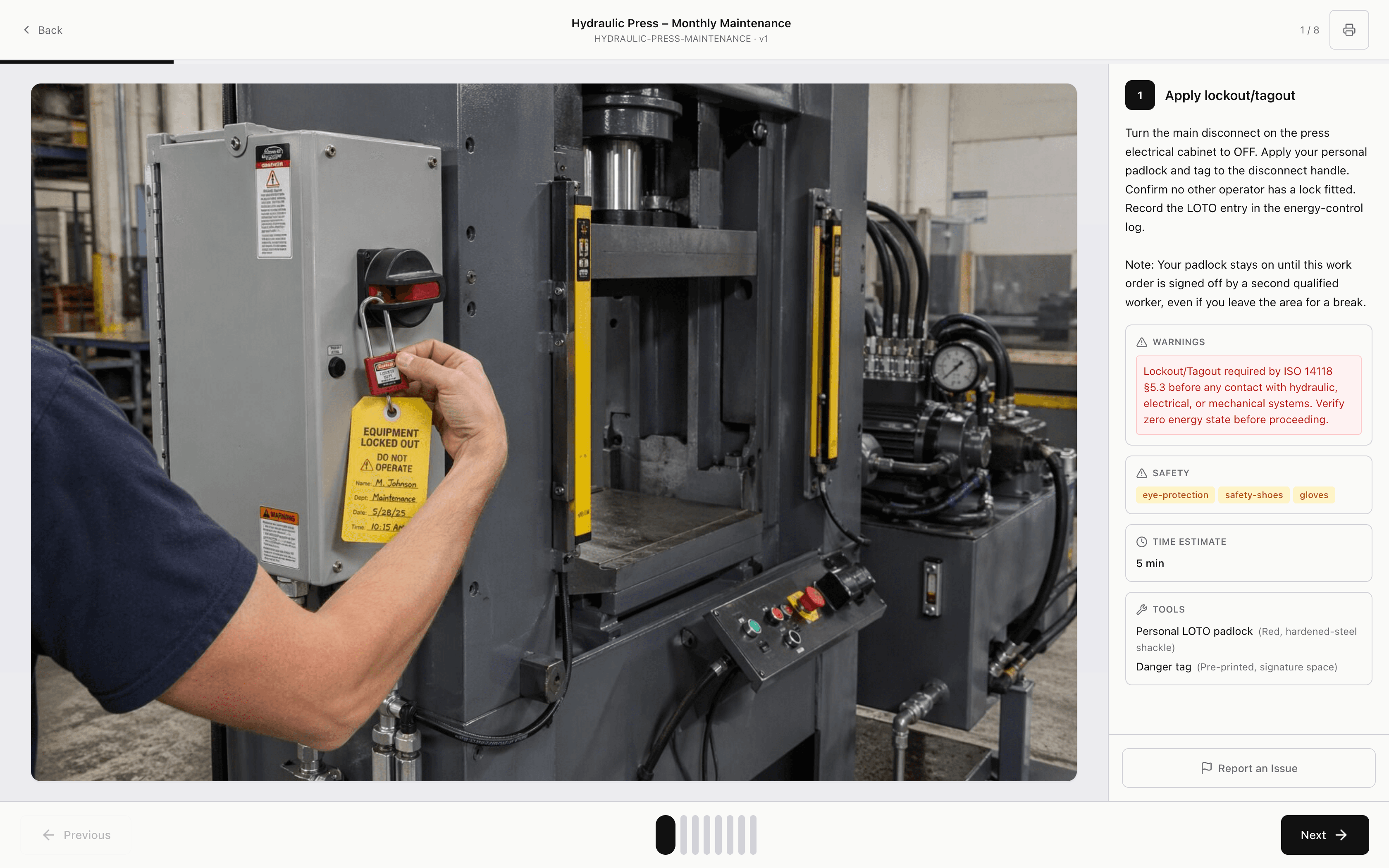
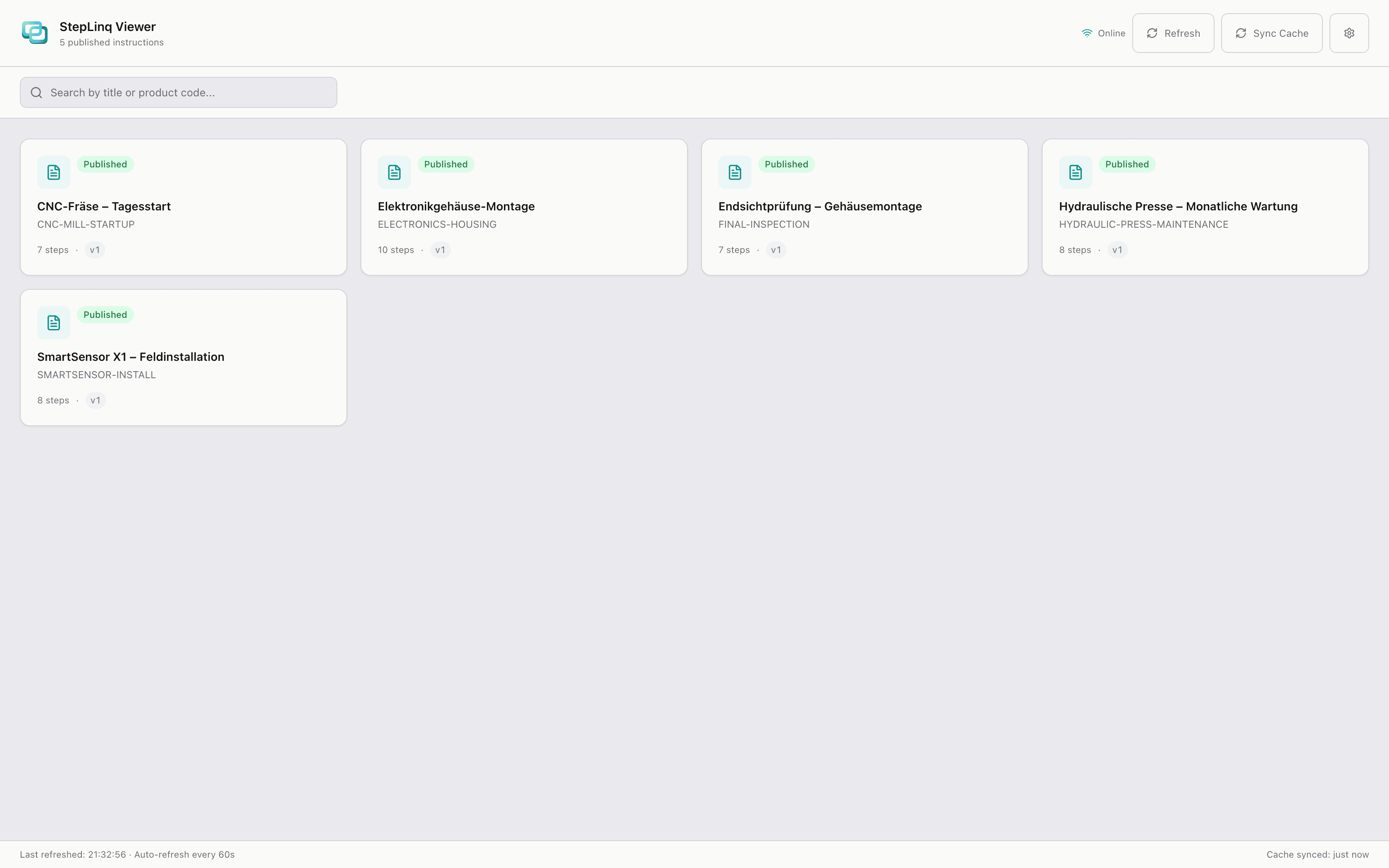
Separate Electron application for factory floor PCs. Shows only approved instructions. Auto-refreshes within 60 seconds of a new approval. Works offline from local cache.
- Shows only approved/published instructions — no drafts visible
- Step-by-step navigation with large photos and clear fields
- Auto-refresh — picks up new approved versions within 60 seconds
- Local cache — works when network share is temporarily unavailable
- Sync status indicator: 'Last synced: 2 min ago'
- No edit capability anywhere — completely read-only
- Separate installer: StepLinq-Viewer-Setup-{version}.exe
- Unlimited installs on Site License
Floor workers report issues directly from the Viewer
Feedback submitted per step with category selection. Pattern detection flags steps receiving multiple reports. Feedback inbox in Editor is filterable and actionable.
- Operators submit feedback from Viewer on specific steps
- Categories: Photo Issue, Wrong Information, Missing Part, Safety Concern, Other
- Optional anonymous feedback toggle
- Feedback inbox in Editor — filterable by instruction, step, category
- Pattern detection flags steps receiving repeated feedback
- Top flagged instructions widget on dashboard
- Feedback can trigger creation of a new instruction version
Scan to open any instruction instantly on the floor
Generate a QR code per instruction. Print it, stick it at the workstation. Operator scans to open the correct approved instruction in the Viewer immediately.
- Generate QR code per instruction for Viewer deep links
- Download QR as PNG
- Print QR directly from the app
- Batch print — multiple QR codes on one A4 sheet
- Scan QR → Viewer opens the correct instruction automatically
- steplinq:// custom protocol handler for deep linking
Enterprise security, indie simplicity
100% offline with code-signed installers, bcrypt PINs, HMAC-SHA256 license validation, and Content Security Policy. Bilingual UI. Config export for multi-device deployment.
- Bilingual UI: English and German — 250+ translated strings
- Language switchable in Settings — takes effect immediately
- In-app help: 22 articles in both languages
- Company name and logo configurable in Settings
- Light / Dark / System theme
- Config export/import (.steplinq-config) for multi-device deployment
- 100% offline — zero outbound network connections
- License validation works completely offline — no server contact needed.
- Secure user accounts with industry-standard encryption.
- Code-signed installer via Azure Artifact Signing
- Auto-updater via electron-updater checking GitHub Releases
- Content Security Policy (CSP) enforced
- Setup wizard for first-time configuration
- Custom app menu and About dialog — no Electron branding visible
Speed up your workflow
What's included by tier
| Feature | Solo | Site |
|---|---|---|
| Step editor with annotations | ||
| 10 professionally designed step layouts — pick the right one for each task | ||
| Structured fields for torque, parts, tools, safety — not free text | ||
| Photo upload + QR + screenshots | ||
| Image crop + brightness/contrast | ||
| Export to print-ready PDF or editable PowerPoint with one click | ||
| Configurable page size (A4, Letter, 16:9) | ||
| Every change tracked — know who changed what and when | ||
| Self-approve workflow | ||
| Instruction + step + section templates | ||
| Parts Library (CSV/Excel import) | ||
| Screws Library (CSV/Excel import) | ||
| BOM export as CSV | ||
| Step groups (collapsible sections) | ||
| Bilingual UI — English / German | ||
| In-app help (22 articles) | ||
| Works without internet — even on air-gapped networks | ||
| Code-signed installer | ||
| Separate roles for who creates, who reviews, and who manages | — | |
| Built-in review and approval — nothing reaches the floor without sign-off | — | |
| Step-level QA comments + resolution tracking | — | |
| Audit trail (ISO 9001 Clause 7.5) | — | |
| No server needed — runs on your existing network | — | |
| StepLinq Viewer app (unlimited installs) | — | |
| Viewer offline cache | — | |
| Operator feedback inbox + pattern detection | — | |
| QR code deep links + batch print | — | |
| Config export/import for deployment | — |
14-day free trial. Full features. No credit card.
Windows and macOS. Download, install, and create your first instruction in under 30 minutes.